How to Send a Fax From Gmail (Step-by-Step)
Gmail can't send faxes natively — Google has never built fax functionality into its email platform. But with a simple workaround, you can send a fax from your Gmail inbox in under two minutes. Here's how.
What You Need
- A Gmail account (free or Google Workspace)
- An online fax service that supports email-to-fax
- The document you want to fax (PDF recommended)
- The recipient's fax number
Step 1: Choose an Online Fax Service
You need an online fax provider that offers "email-to-fax" functionality. Most major providers support this, including Fax.Plus, eFax, HelloFax, and RingCentral Fax. Sign up and verify your Gmail address with the service.
Some services require your Gmail address to be registered as an "authorized sender" — this prevents strangers from using your fax account.
Step 2: Compose a New Email in Gmail
- Open Gmail and click Compose
- In the To field, enter the fax number followed by the service's domain name.
Example:15551234567@faxprovider.com - The format varies by provider. Common patterns:
- Fax.Plus:
+15551234567@fax.plus - eFax:
15551234567@efaxsend.com - HelloFax:
15551234567@hellofax.com
- Fax.Plus:
Step 3: Attach Your Document
Click the paperclip icon and attach your document. PDF is the safest format — it maintains layout across all fax systems. Most services also accept:
- .doc / .docx (Word documents)
- .xls / .xlsx (Excel spreadsheets)
- .png / .jpg / .tiff (images)
Tip: Keep attachments under 10 MB. Large files can time out during the fax conversion process. If your PDF is large, compress it before attaching.
Step 4: Add a Subject Line and Body (Optional)
Some providers use the email subject as the fax cover page subject line, and the email body as the cover page message. If you want a clean fax without a cover page, leave the subject and body blank (check your provider's settings).
Step 5: Hit Send
Click Send. That's it. The fax service receives your email, extracts the attachment, converts it to fax format, and sends it to the recipient's fax number.
You'll receive a delivery confirmation email in your Gmail inbox, usually within 1–5 minutes.
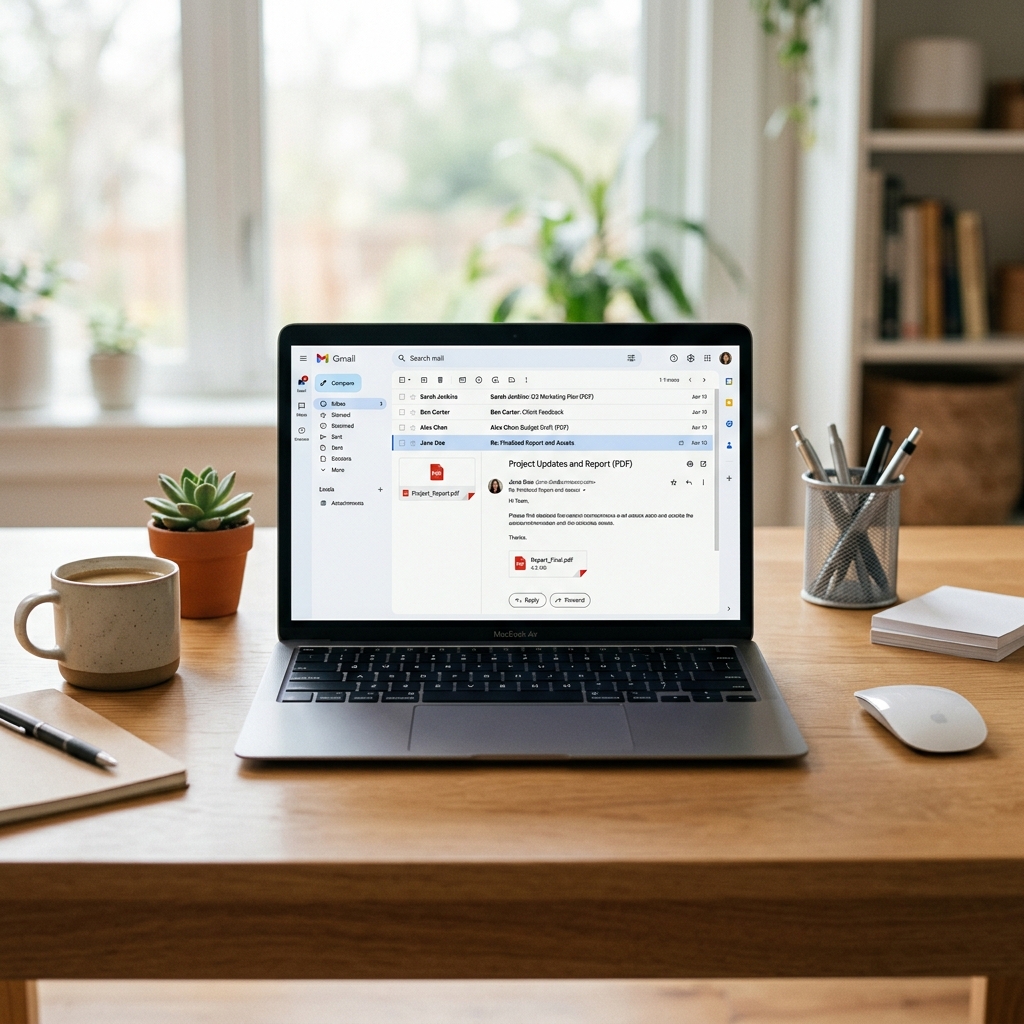
Sending a fax from Gmail is as simple as composing an email with the fax number as the recipient.
Receiving Faxes in Gmail
The reverse also works. When someone sends a fax to your virtual fax number, the online fax service converts it to a PDF and delivers it as an email attachment to your Gmail inbox.
Organizing faxes with Gmail labels
Set up a Gmail filter to automatically label incoming faxes:
- Go to Gmail Settings → Filters and Blocked Addresses → Create New Filter
- Set From to your fax service's email address (e.g.,
notifications@fax.plus) - Click "Create filter" and select:
- Apply label: "Fax" (create this label first)
- Optional: Skip inbox (if you want faxes to stay organized without cluttering your main inbox)
Gmail vs. Web Portal: Which Is Better?
| Factor | Gmail (Email-to-Fax) | Web Portal |
|---|---|---|
| Speed | Fast (if familiar) | Slightly faster |
| Interface | Your existing inbox | Dedicated fax UI |
| Cover page control | Limited | Full customization |
| Tracking | Email confirmations | Dashboard + history |
| Multiple recipients | ❌ One at a time | ✅ Broadcast |
For occasional faxes, Gmail is incredibly convenient — you never leave your inbox. For power users who fax daily, the web portal offers more control. Tools like FaxRadar list which providers support email-to-fax so you can choose a compatible service.
Common Issues
- "Fax failed" email — Usually means the recipient's fax line was busy. Wait 10 minutes and resend.
- Wrong format in To field — Double-check the number format. Some services want +1, others don't.
- Attachment stripped — Gmail's security filters can block certain file types. Stick with PDF.
- Not authorized — Your Gmail must be registered with the fax service first.